
Installation
Easy and fast installation with a setup wizard (test versions as well as productive setups)

- 1. Express installation
- 2. Customization
- 3. Secure http connection (SSL/https)
- 4. CardDAV
- 5. Backups
- 6. Supported Java versions
1. Express installation
You can run ProjectForge as a Docker container or directly as an executable JAR file. Both ways end with the same setup wizard and the same setup page in your browser.
Once ProjectForge is running, the Quick start shows how to set up your company, your team and your first project. All configuration options (database, mail, LDAP, identity provider, 2FA, backups, …) are described in the Administration guide.
As a developer, you may also refer to ProjectForge on GitHub and the Development guide.
1.1. Requirements
Java |
Java 21 or newer from version 9.2 on (only needed without Docker; 8.0 to 9.1.x: Java 17 or newer). ProjectForge is compiled for Java 21 and runs in production on Java 21. From version 9.0.6 on, our Docker image is based on Eclipse Temurin 21 (JRE). |
|---|---|
Database |
PostgreSQL 13 or newer for productive use. For tests and small installations, the embedded database (HSQLDB) works out of the box. |
Operating system |
Docker images for Linux on amd64 and arm64 (also running on macOS with Intel or Apple silicon). The JAR runs wherever Java runs (Linux, macOS, Windows). |
Browser |
Any current browser (Chrome, Firefox, Safari, Edge). |
The database schema is created and migrated automatically (Flyway) on every start, so there’s nothing to prepare
except an empty PostgreSQL database (the database user needs the right to create the extension pg_trgm), see
Administration guide – PostgreSQL.
1.2. Docker
The image micromata/projectforge is available on Docker Hub.
We assume $HOME/ProjectForge as ProjectForge’s home directory on the host in this documentation, but you may choose
anything else (it should be empty if it already exists). Inside the container, the home directory is always
/ProjectForge.
ProjectForge doesn’t run as root inside the container, but as the system user projectforge of the image, so this
user must be able to write into the home directory on the host. On Linux, create the directory first and hand it
over to the user id of projectforge (ask the image for it, the id isn’t fixed):
docker run --rm --entrypoint id micromata/projectforge projectforge   # e.g. uid=101(projectforge) gid=101(projectforge) ...
mkdir -p $HOME/ProjectForge
sudo chown 101:101 $HOME/ProjectForge                                 # use the uid and gid shown by id
For tests or small installations you may use the embedded database. For productive use, run your own PostgreSQL (on the host, in another container or as a managed service) and enter its connection in the setup wizard.
1.2.1. Running a single docker container
This is the recommended way to run ProjectForge with Docker, with the embedded database or your own PostgreSQL.
-
First start:
docker run -t -i -p 127.0.0.1:8080:8080 -v $HOME/ProjectForge:/ProjectForge --name projectforge micromata/projectforge -
Without a
projectforge.propertiesin the home directory, the console setup wizard is shown, see The installation setup wizard (for all installations). The selection of the home directory is skipped in Docker. -
Open localhost:8080 and complete the setup page.
-
Stop ProjectForge by pressing
CTRL-Cor withdocker stop projectforge.
Afterwards, use docker start projectforge and docker stop projectforge.
For full functionality of all plugins, restart the container once after the first setup:
docker restart projectforge.
The port is published on 127.0.0.1 only, so ProjectForge is reachable only through a reverse proxy on the same
host (see Secure http connection (SSL/https)). Leave it this way when running behind a proxy.
You may monitor the log file: tail -f ~/ProjectForge/logs/ProjectForge.log
For configuring ProjectForge, go to ProjectForge’s home directory:
-
projectforge.propertiesfor customizing the settings of ProjectForge (see Customization). -
environment.shfor the Java options (e.g.export JAVA_OPTS="-Xmx2g"for more memory), followed by a restart.
1.2.2. Updating the docker container
All data (configuration, embedded database, files, logs) is kept in the home directory on the host, so the container can simply be replaced by one of the new image. Back up first (see Backups) and read the Migration guide.
docker pull micromata/projectforge
docker stop projectforge
docker rm projectforge
docker run -d -p 127.0.0.1:8080:8080 -v $HOME/ProjectForge:/ProjectForge --name projectforge micromata/projectforge
Use the same -v (and -p) options as before. The database is migrated automatically on the first start of the new
version.
1.2.3. Running as stack (docker compose, experimental)
|
The docker compose stack in
docker/compose is experimental and not yet
ready for use: the files are incomplete and contain errors (e.g. in |
The stack is planned to run ProjectForge together with a PostgreSQL container and an NGINX container. If you build
your own stack based on it, publish the port of ProjectForge on 127.0.0.1 only (e.g.
"127.0.0.1:${APP_PORT}:8080") or not at all, so it can be reached only through the proxy. For updating, run
docker compose pull and docker compose up -d, which re-creates the containers with the same volumes.
1.3. Java installation (without Docker)
If you don’t want to use Docker, you can run ProjectForge from the executable JAR file.
-
Install Java 21 or newer (e.g. OpenJDK or Eclipse Temurin; ProjectForge 8.0 to 9.1.x also runs on Java 17), check with
java -version. -
Download
projectforge-application-<version>.jarfrom GitHub releases. -
First start in the foreground (so the setup wizard can be shown):
java -jar projectforge-application-<version>.jar -
Follow the setup wizard (see below), then complete the setup page in your browser (e.g. on
localhost:8080; if you use another port, update the NGINX configuration as well). -
If you use NGINX as reverse proxy, (re-)start it:
systemctl restart nginx
ProjectForge looks for its home directory in this order: the command line option -Dhome.dir=… (or
-Dprojectforge.base.dir=…), the environment variable PROJECTFORGE_HOME, the directory chosen in a former setup,
ProjectForge in your user’s home directory, next to the JAR file, and finally ProjectForge in the current
directory. If no initialized home directory is found, the setup wizard is started.
For later starts in the background, you may use these examples (the JAR file name must contain
projectforge-application):
-
Example start script: startProjectForge.sh
-
Example stop script: stopProjectForge.sh
For updating, stop ProjectForge, replace the JAR file and start the new version.
1.4. The installation setup wizard (for all installations)
On the first start (no initialized home directory), ProjectForge asks you to enter the setup wizard. Go for it. There is a console wizard as well as a graphical wizard (desktop application), depending on your environment. If your system supports both, you may choose. Both editions have the same functionality.
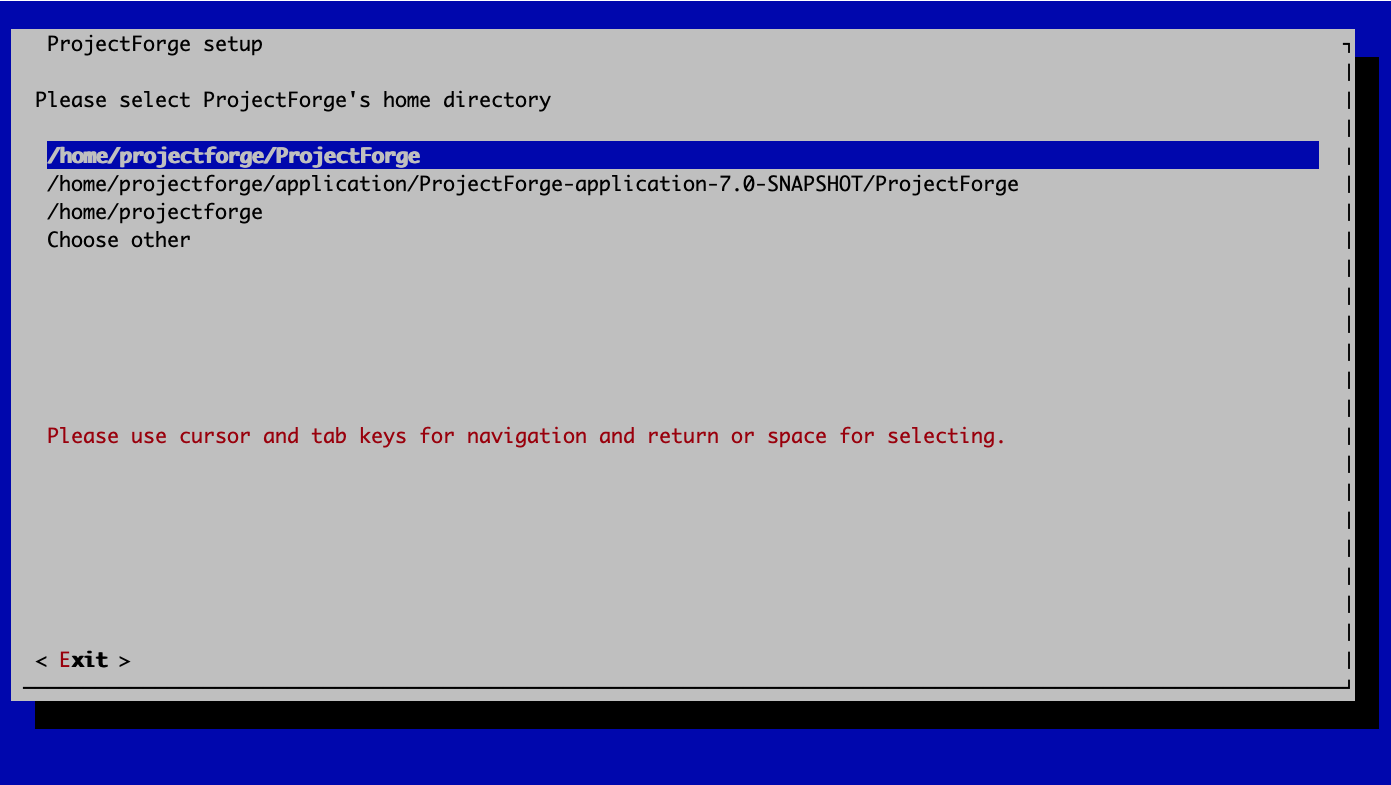
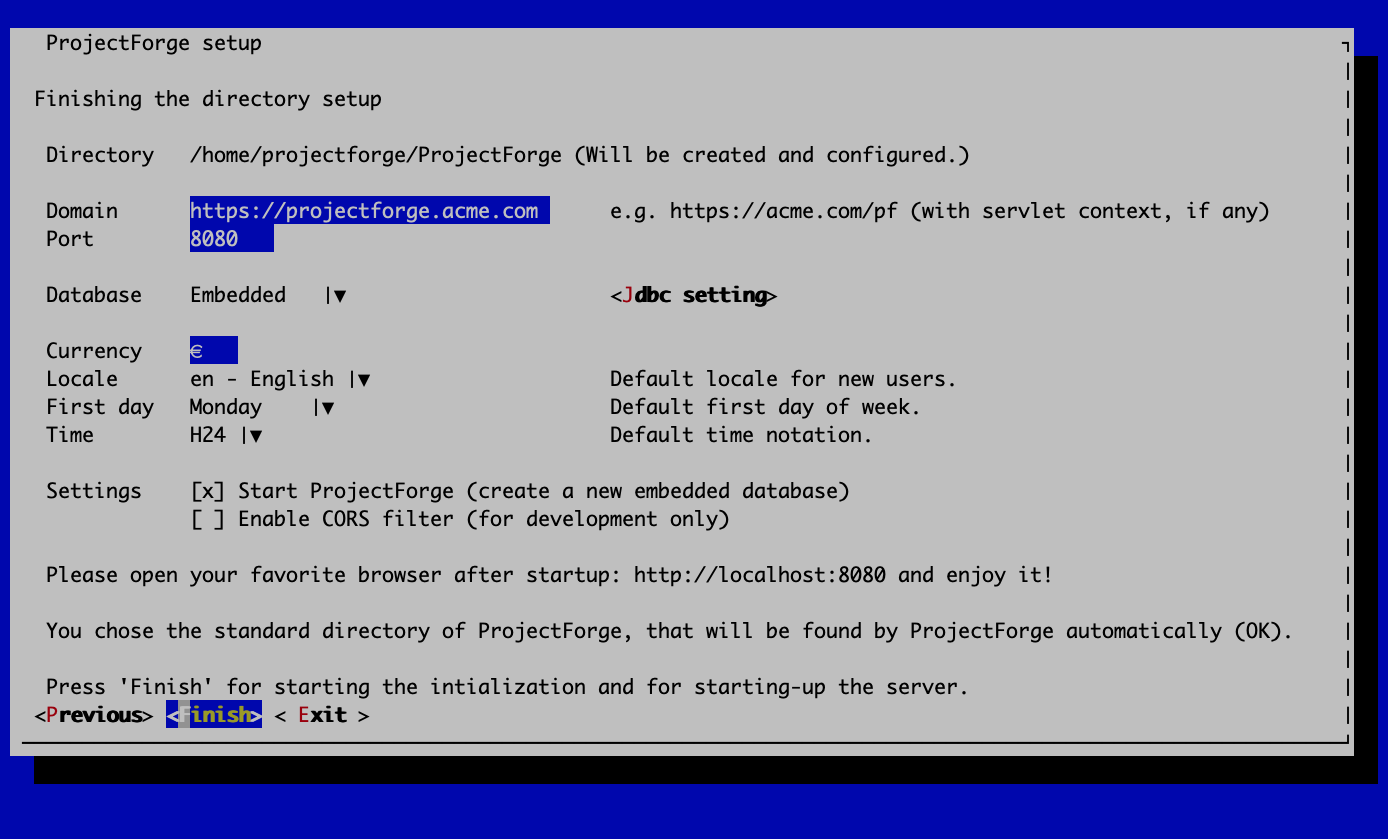
You may leave most settings as they are. You can change them later in projectforge.properties.
Directory |
ProjectForge’s home directory including configuration, database, logs and working directories. |
|---|---|
Domain |
The public URL of your installation (localhost:8080 for test systems), including a servlet context, if any. It’s used e.g. for links in e-mail notifications. |
Port |
ProjectForge starts the server on this port (8080 should be fine in most cases; it can’t be changed in Docker). |
Database |
Embedded uses the built-in database (HSQLDB), fine for tests, development or small instances. PostgreSQL is recommended for productive use. In the docker compose stack only PostgreSQL is offered, the single container supports the embedded database as well. |
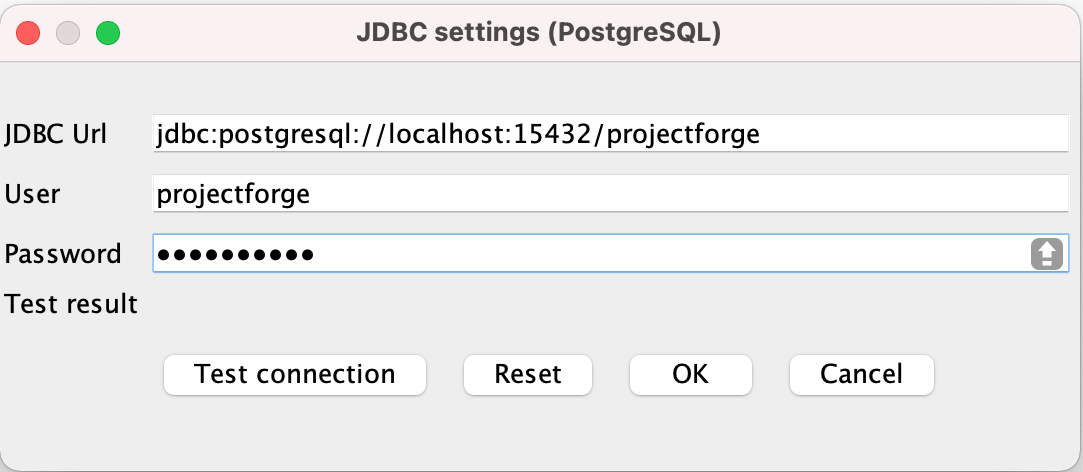
Jdbc settings |
For PostgreSQL, enter the connection values and check them with Test connection. |
Currency |
The default currency. |
Locale |
The default locale for new users (English or German). Every user can choose their own language. |
First day |
The first day of the week in calendar views. |
Time |
The default time notation (H24 or H12, customizable by the users). |
Setting |
Start ProjectForge – if checked, ProjectForge is started after clicking Finish. For the embedded database, the database is created. |
Setting |
Enable CORS filter – for frontend development only. Never use it on productive systems! |
The wizard writes projectforge.properties into the home directory, including a randomly
generated password pepper and token encryption key. After clicking Finish, ProjectForge is initialized and started.
Open your browser at localhost:8080 (or your domain, e.g. projectforge.acme.com).
|
If |
Without Docker, ProjectForge listens on localhost only (server.address=localhost) for security reasons. For https and
access from other hosts, please use a reverse proxy, see Secure http connection (SSL/https).
1.5. The setup page
|
Until the setup page is completed, anybody who can reach your new instance is able to set it up! So complete it right away if your instance is publicly available (or protect it, e.g. by basic auth in NGINX, see below). |
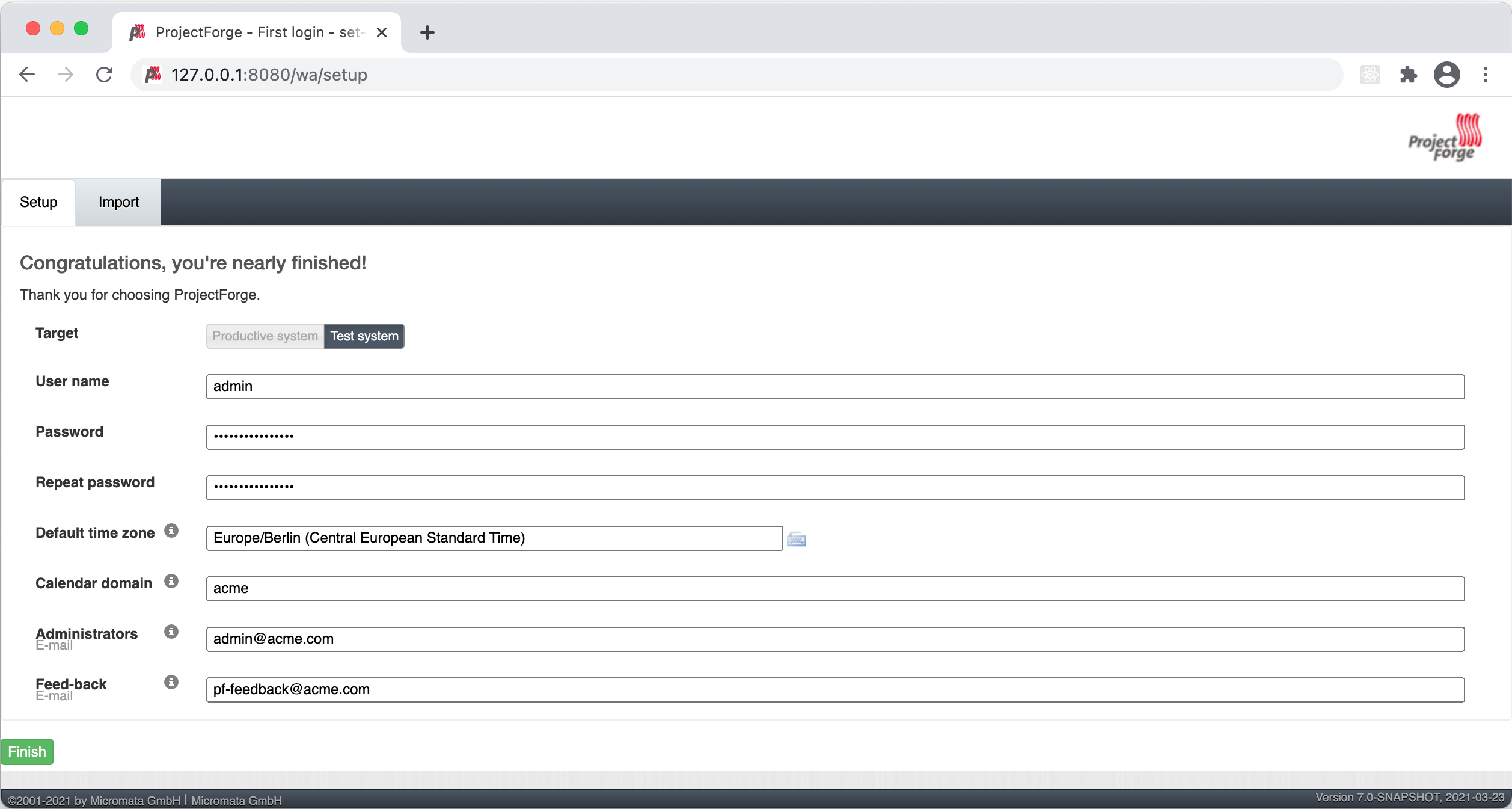
Target |
Productive system creates an empty database containing only the administrator account. Test system creates a database preloaded with example data (users, projects, invoices and more) for exploring ProjectForge. |
|---|---|
User name |
The user name of the initial administrator (default: |
Password |
The administrator’s password (entered twice). |
Default time zone |
Default time zone for all users who haven’t chosen their own in My account. |
Calendar domain |
Used for world-wide unique ids of calendar events, e.g. your domain name (default: |
System administrator e-mail |
ProjectForge sends e-mails to this address (or these comma-separated addresses) in case of special errors. |
Feedback e-mail |
Optional address for user feedback (e.g. your help desk). |
Click Finish. ProjectForge initializes the database and takes you to the login page, where you sign in with the administrator account you’ve just created.
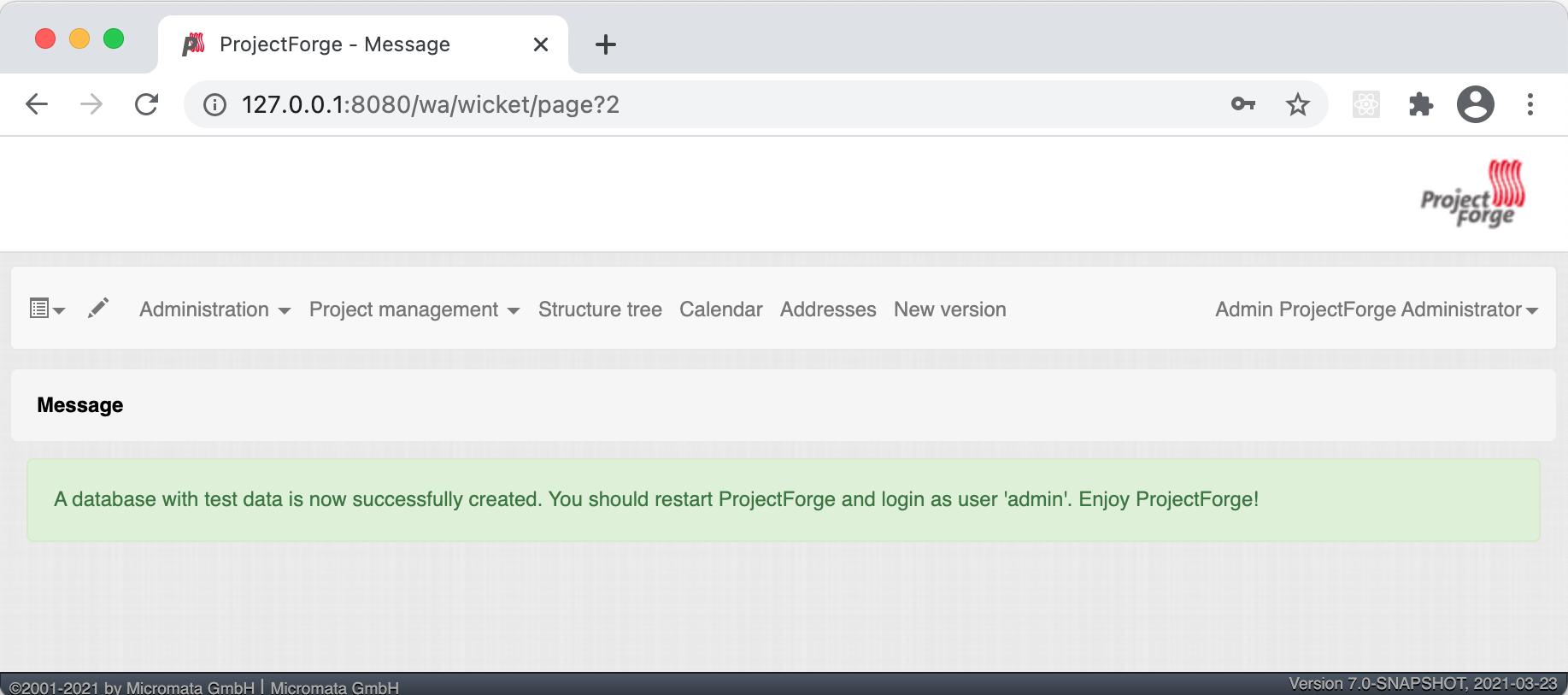
Now continue with the Quick start to set up your users, groups and first project.
1.6. Activation of built-in plugins
Some features are built-in plugins which you have to activate as administrator under Administration → Plugins. The plugin Data transfer is recommended. (De-)activation takes effect only after a restart of ProjectForge.
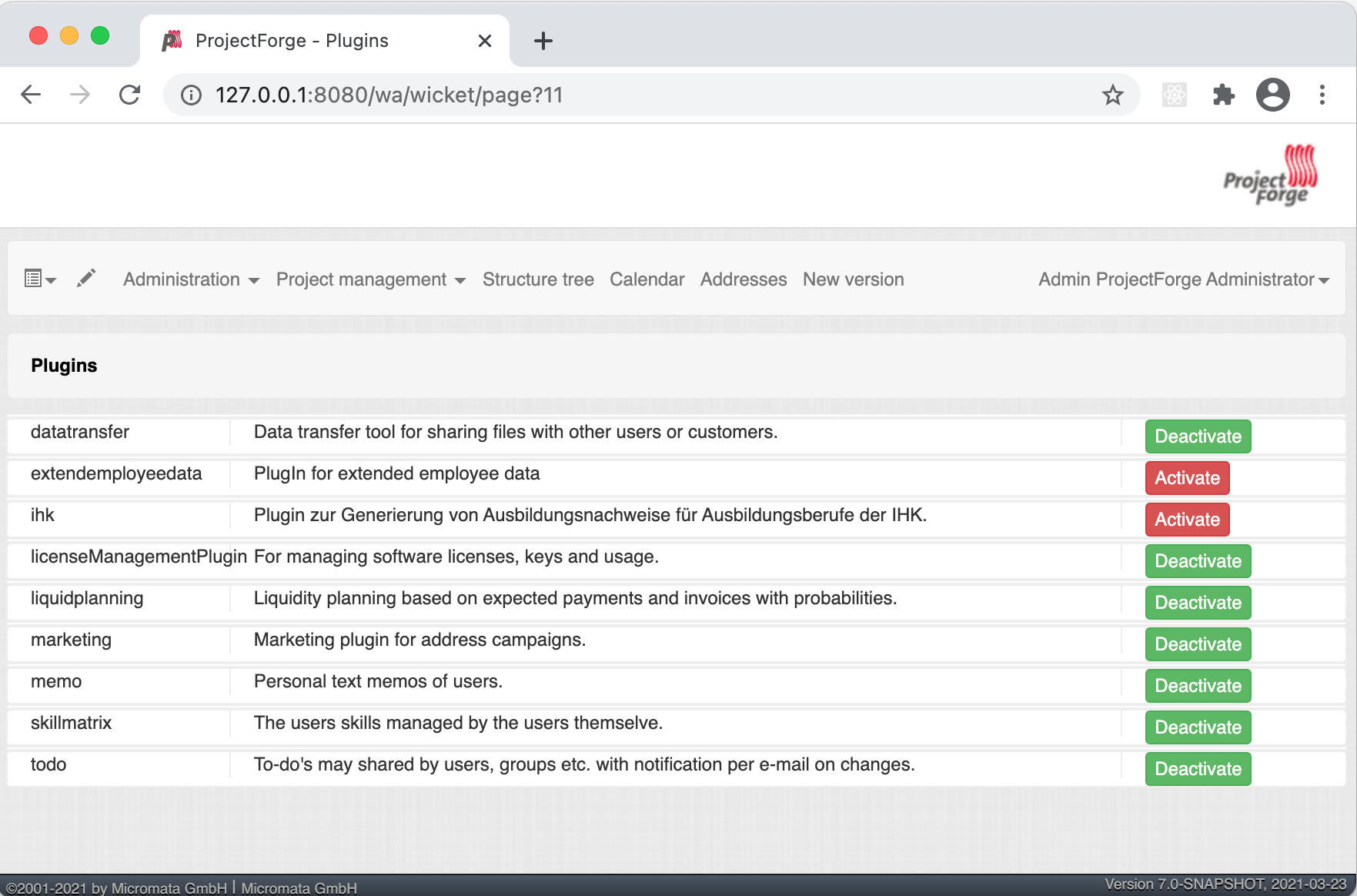
You may also activate plugins in projectforge.properties, e.g. projectforge.plugins.ensure-active=datatransfer
(comma-separated ids; plugins activated this way can’t be deactivated in the web app).
2. Customization
2.1. Main configuration file projectforge.properties
projectforge.properties in ProjectForge’s home directory overrides the defaults. A minimal version is written by the
setup wizard. You’ll find an overview of all options with comments here:
application.properties
The most important settings (database, mail server, LDAP, identity provider, 2FA, logo, …) are described in the Administration guide.
2.2. Configuration parameters
Further parameters (e.g. default time zone, cost-unit accounting, phone prefix) are set in the web application under
Administration → Configuration. This includes special settings such as your specific holidays, contract types,
JIRA servers and the rows of the business assessment (BWA), formerly configured in the file config.xml: an existing
config.xml is taken over automatically on the first start (see Migration).
3. Secure http connection (SSL/https)
The recommended way is a reverse proxy doing the SSL termination in front of ProjectForge.
3.1. Using built-in functionality
Without NGINX, Apache etc. you may use the SSL support of Spring Boot, see Administration guide – SSL / Https.
3.2. Nginx
3.2.1. Prepare
All of the commands below should be run with root privileges.
-
Install Nginx:
$ apt-get install nginx -
Get an SSL certificate (use only one of the options below)
-
Create a self-signed certificate:
$ openssl req -x509 -nodes -days 365 -newkey rsa:2048 -keyout /etc/ssl/projectforge.key -out /etc/ssl/projectforge.crt -
Generate an SSL certificate using Let’s Encrypt; note that the paths in the NGINX configuration below need to be changed then.
-
-
Generate secure Diffie-Hellman parameters for key exchange (this will take a long time):
$ openssl dhparam -out /etc/nginx/dhparam.pem 4096
secure domain for setup through htpasswd (optional)
-
$ apt-get install apache2-utils -
$ htpasswd -c /etc/nginx/.htpasswd projectforge
3.2.2. Configure Nginx
To use NGINX as a reverse proxy, create a configuration file. The standard path for NGINX configurations is
/etc/nginx/sites-available/, so let’s create the file /etc/nginx/sites-available/projectforge from our
template.
If you want to use .htpasswd to block access to the installation, remove the comment character () in front of the auth_basic and auth_basic_user_file parameters.
If you want to use HSTS (which makes browsers show an error page when the SSL certificate is invalid and/or nonexistent), remove the comment character () in front of the add_header Strict-Transport-Security parameter.
Remember to replace projectforge.example.com with the actual domain you’ll run ProjectForge on!
3.2.3. File uploads
client_max_body_size limits the size of an upload (attachments, data transfer areas). NGINX
defaults to 1 MB and answers anything larger with 413 Request Entity Too Large, so ProjectForge
never sees the request and cannot report the refusal itself. Keep the value at least as high as
spring.servlet.multipart.max-request-size in projectforge.properties.
Every reverse proxy in front of ProjectForge enforces its own limit, and the smallest one wins
silently. If requests pass through a load balancer or an SSO proxy such as Authentik, the value has
to be raised there as well - a 413 arriving from such a hop looks exactly like one from NGINX. The
Server response header of the 413 tells which hop refused it.
The template also switches proxy_request_buffering off and raises the timeouts, so a large upload
is streamed through rather than spooled to disk first, and a slow connection isn’t cut while the
body is still on its way.
To activate the NGINX configuration, symlink the configuration file we just created to /etc/nginx/sites-enabled:
$ ln -sv /etc/nginx/sites-available/projectforge /etc/nginx/sites-enabled/projectforgeIf your proxy doesn’t run on the same host or in the same docker network as ProjectForge, add its address to
projectforge.security.trustedProxies, otherwise the client addresses (used e.g. by the brute force protection of the
login) aren’t taken from X-Forwarded-For.
3.3. Apache httpd
Any other reverse proxy works as well; we don’t provide a template for Apache httpd.
4. CardDAV
The CardDAV server for synchronizing address books is built in and enabled by default
(projectforge.carddav.server.enable=true). No additional libraries or licenses are needed.
5. Backups
Back up your database regularly. All data, including the uploaded files (attachments of contracts, orders, invoices etc.) of the new file store, is stored in the database. With the embedded database, stop ProjectForge and copy its home directory. A backup script, the purge job for old backups and the restore are described in Administration guide – Backup.
Before every update, please also have a look at the Migration guide.
6. Supported Java versions
From version 9.2 on, ProjectForge is compiled for Java 21 and runs on Java 21 or newer (8.0 to 9.1.x: Java 17 or newer). We run it in production on Java 21. From version 9.0.6 on, our Docker image is based on Eclipse Temurin 21 (JRE). With Docker, you don’t need to install Java at all.